4.3 Part 9: the event panel
Click any box or arrow in the graph and its details appear in the event panel at the bottom right. Everything in the panel can be changed, and the graph updates as you type. The panel changes shape depending on what you have selected.
An event
An event has the most fields (Figure 4.15).
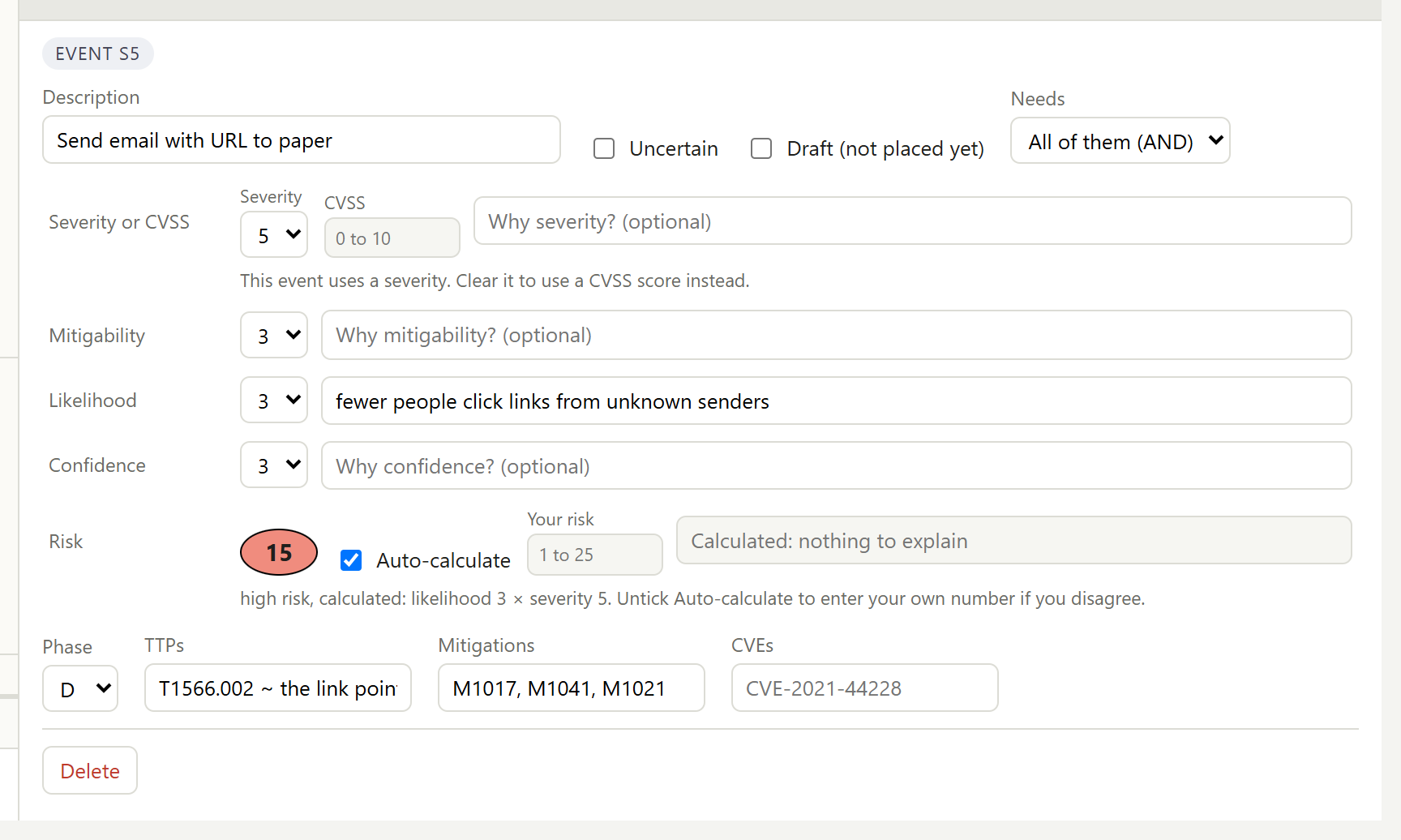
- Description
- The name of the event. This is the text shown in the box.
- Uncertain
- Tick if you are not sure this really happened. The box is drawn dotted.
- Draft (not placed yet)
- Tick if the event is only a reminder. It is greyed out and does not complain about what is missing until you untick it.
- Needs
- All of them (AND) or Any one (OR): how the things this event needs are combined.
- Severity or CVSS
- How serious the event is. Give either a severity from 1 (minor) to 5 (critical), or a CVSS score from 0 to 10 if you have one, never both. Whichever you fill in, the other greys out and the panel tells you so.
- Mitigability
- How hard the event would be to mitigate: 1 (very easy to mitigate) to 5 (very hard to mitigate, the worrying end).
- Likelihood
- How likely the event is: 1 (rare) to 5 (almost certain).
- Confidence
- How sure you are about this event, from 1 to 5. It is not drawn in a corner, but it is saved.
- Risk
- A number worked out as likelihood × severity (for example 3 × 5 = 15), coloured low, medium or high. Auto-calculate is ticked by default, and the panel shows the sum. Untick it to type your own risk (from 1 to 25) if you disagree with the sum.
- Phase
- The stage of the kill chain: R reconnaissance, W weaponisation, D delivery, E exploitation, I installation, C command and control, A actions on objectives.
- TTPs, Mitigations
- The ATT&CK techniques and mitigations for the event, written as codes separated by commas. Use Pick TTP… and Pick mitigation… (Part 7) instead of typing them. A note can follow a code after a
~, for exampleT1566.001 ~ the PDF arrives by email, and a?directly after a code marks just that code uncertain. - CVEs
- Real, published vulnerabilities the event exploits, such as
CVE-2021-44228. Hover over a CVE to see its description. The builder flags a CVE that has been entered wrongly: if it is badly formed (for exampleCVE2021-44228,CVE-21-1, or the wrong number of digits), a red error appears in the problems bar saying it “isn’t a valid CVE id” and showing what one looks like. It checks the format only, not whether that vulnerability really exists, so look each CVE up on the National Vulnerability Database and copy it exactly. A CVE does not carry a score into the box by itself: if you want the score shown, enter it yourself in the CVSS box. - Delete
- Removes the event.
Say why you scored it that way. Next to every score (severity, CVSS, mitigability, likelihood, confidence and your own risk) there is a box that says “Why…? (optional)”. Use it. A number on its own is only a guess; a number with your reason shows your thinking, and the reason appears when anyone hovers over that circle on the graph. Adding the why is what turns a score into evidence.
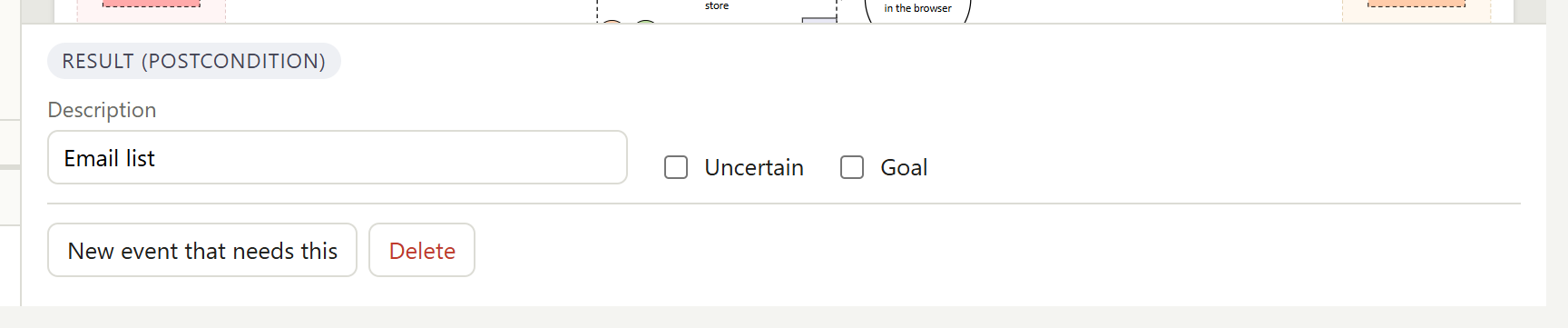
A result, a condition or the goal
A result, a condition or the goal has a short panel (Figure 4.16): Description, Uncertain, Goal, and New event that needs this, which adds an event that depends on this state. Tick Goal to make it the end of your attack.
An enabler
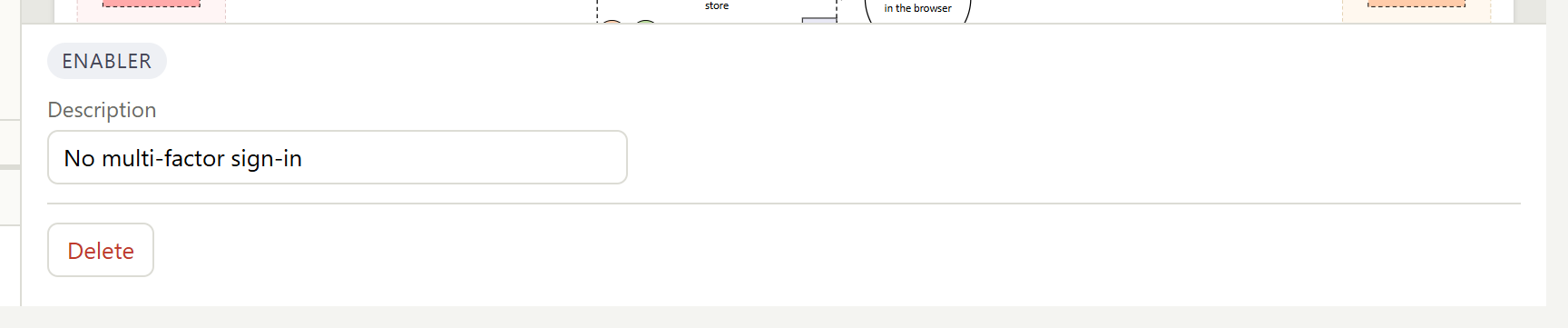
An enabler has just a Description and Delete (Figure 4.17).
You can fill in as little or as much of the event panel as you like. Chapter 5 shows the minimum for a passable graph, and Chapter 6 shows what to add to use the whole range.