2.9 Part 4: Help, Feedback and your account
At the very top right of the screen are four items (Figure 2.38).

- Help
- Opens this guide in a new tab, so you can read it alongside the builder.
- Feedback
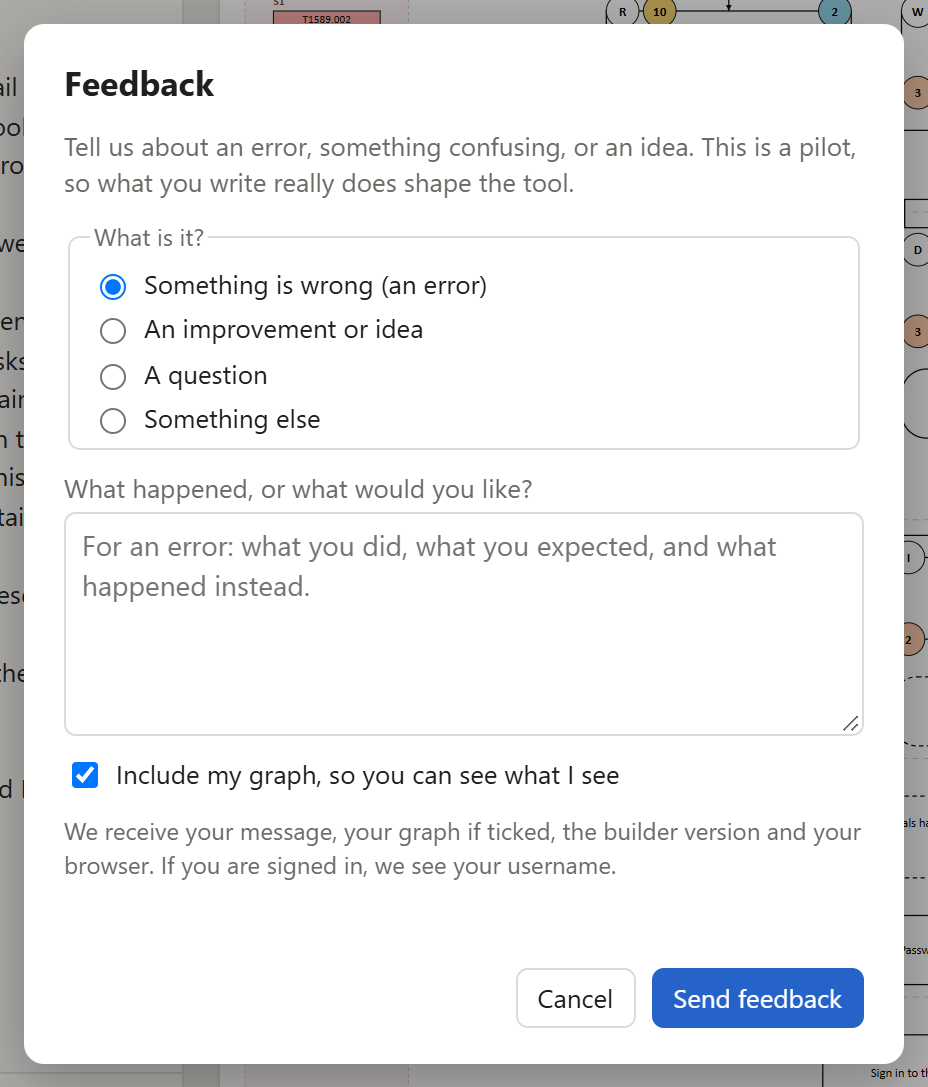
- Tells us about a mistake, something confusing, or an idea. A small box asks what kind of message it is (Figure 2.39): something is wrong (an error), an improvement or idea, a question, or something else. Type what happened or what you would like, and tick Include my graph if you want us to see what you see. We receive your message, your graph if ticked, the version of the builder, your browser, and, if you are signed in, your username.
- Your student ID and class
- Shows that you are signed in, with your student ID and a short code in brackets.
- Sign out
- Signs you out. Do this on a shared computer when you finish.
If you are not signed in, a red notice, NOT SIGNED IN: nothing is saved to your account, appears here, with a Sign in button instead of your ID.
Tip
To change your password, go to the sign-in page (the Accounts page) and use the Change password button at the top right, once you are signed in.