2.6 Worked example: export to your computer, and import it back
Save keeps your graph on the server. Export makes a copy as files on your own computer, which you can keep as a backup, put in your report, or hand in. Here is the round trip with the phishing graph.
Part A: export
- Step 1.Press Export… in the File buttons. The Export box opens.
- Step 2.
To hand in your coursework, tick Prepare coursework submission. The pictures below it grey out: they are covered. (For pictures for your report instead, leave that unticked, and tick Graph picture (PNG) or (SVG).)
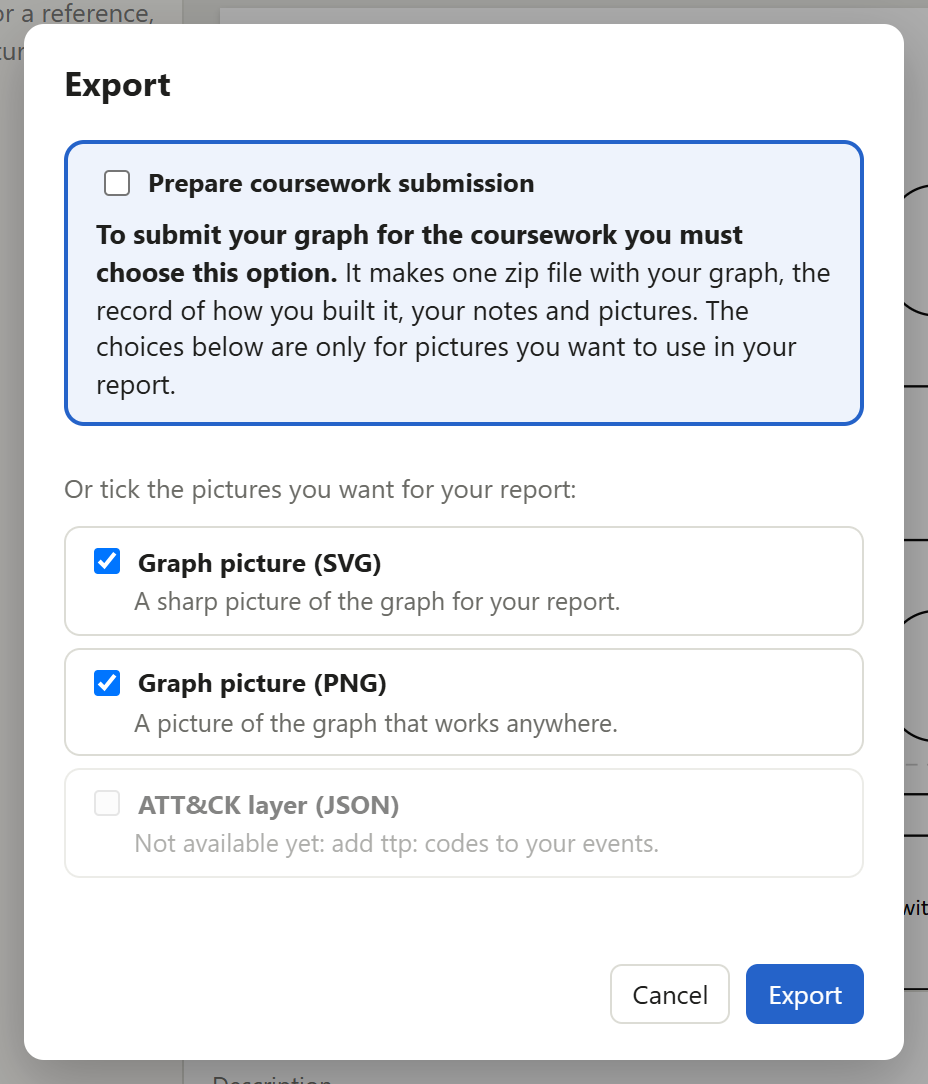
Figure 2.26. Step 2: the Export box, ready to prepare a submission. - Step 3.Press Export. Your browser downloads one file, named after your graph’s title, such as
my-attack-coursework-submission.zip. It usually goes to your Downloads folder, and the browser shows it at the top right of its window. The message “Coursework submission ready” appears in the builder.
Part B: look inside the zip
A zip file is a folder squashed into one file. To look inside, unzip it. On Windows, right-click the file in your Downloads folder and choose Extract All…; on a Mac, double-click it. Inside you will find files named after your graph: the graph file (.txt), the activity log report, your notes, and pictures of the graph. You upload the zip file itself; you do not need to unzip it to hand it in.
Part C: import (open it from your computer)
- Step 1.
In the builder, press Open and choose From my computer….
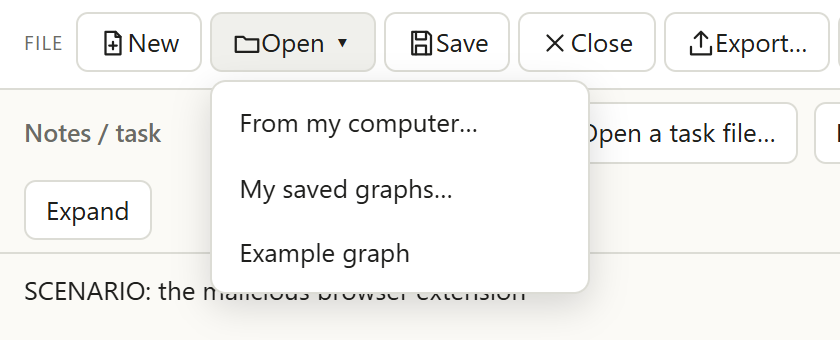
Figure 2.27. Step 1: Open, From my computer. - Step 2.A file chooser from your computer opens. Find the unzipped folder and choose the graph file,
my-attack.txt(ending in.txtonly). Press Open. - Step 3.
The graph appears, and the message “Opened my-attack.txt” shows beside Undo.
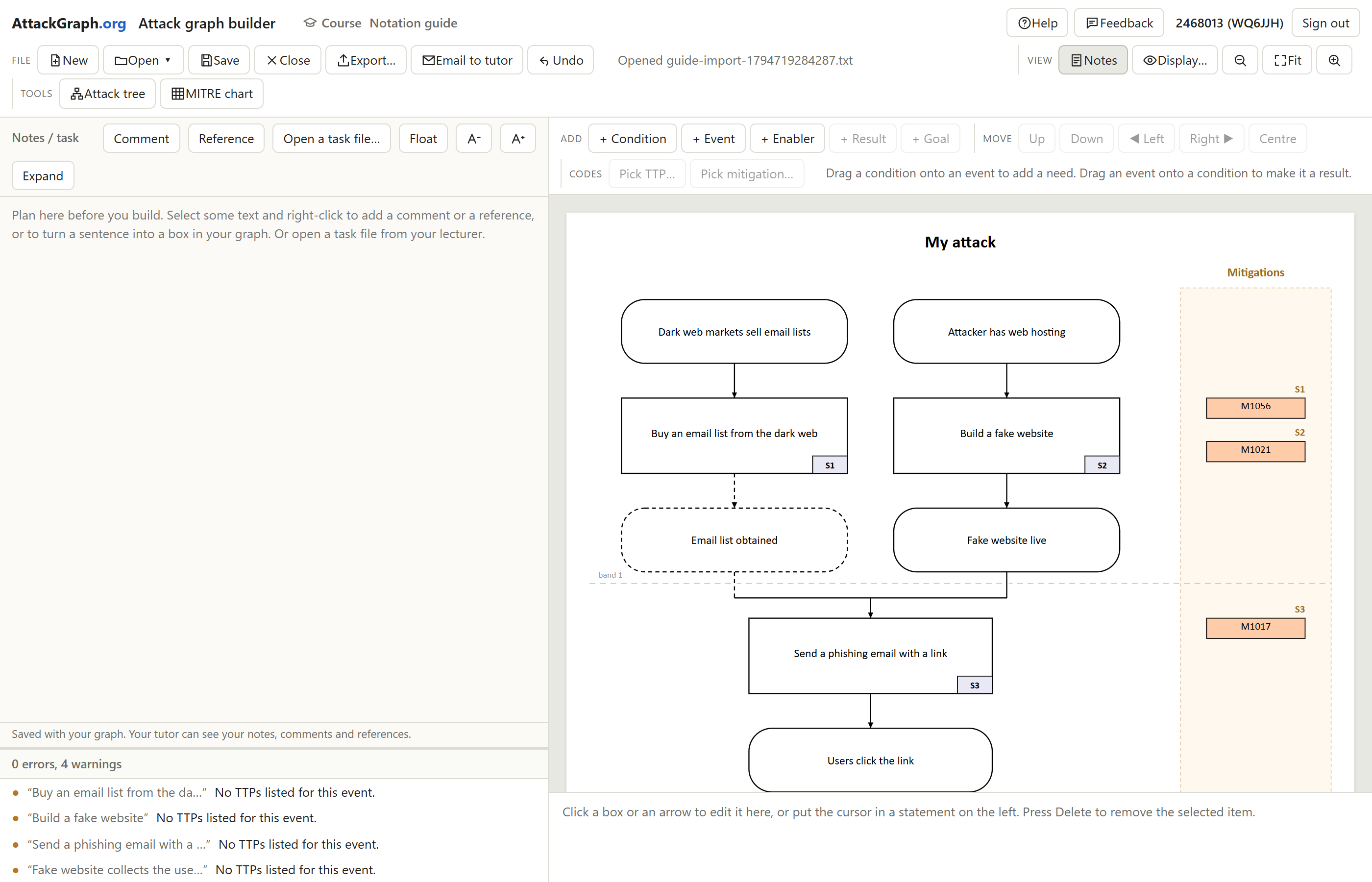
Figure 2.28. Step 3: the graph has been opened from the file.
Opening a file replaces what is on the screen. If your current graph is not saved, press Save first, or press Undo straight afterwards to get it back. Open the .txt graph file, not the .zip, .png or .svg: those are pictures and a bundle, not graphs the builder can read.
Opening a file from your computer does not save it to the server. After you have opened it, press Save if you want it in My saved graphs.